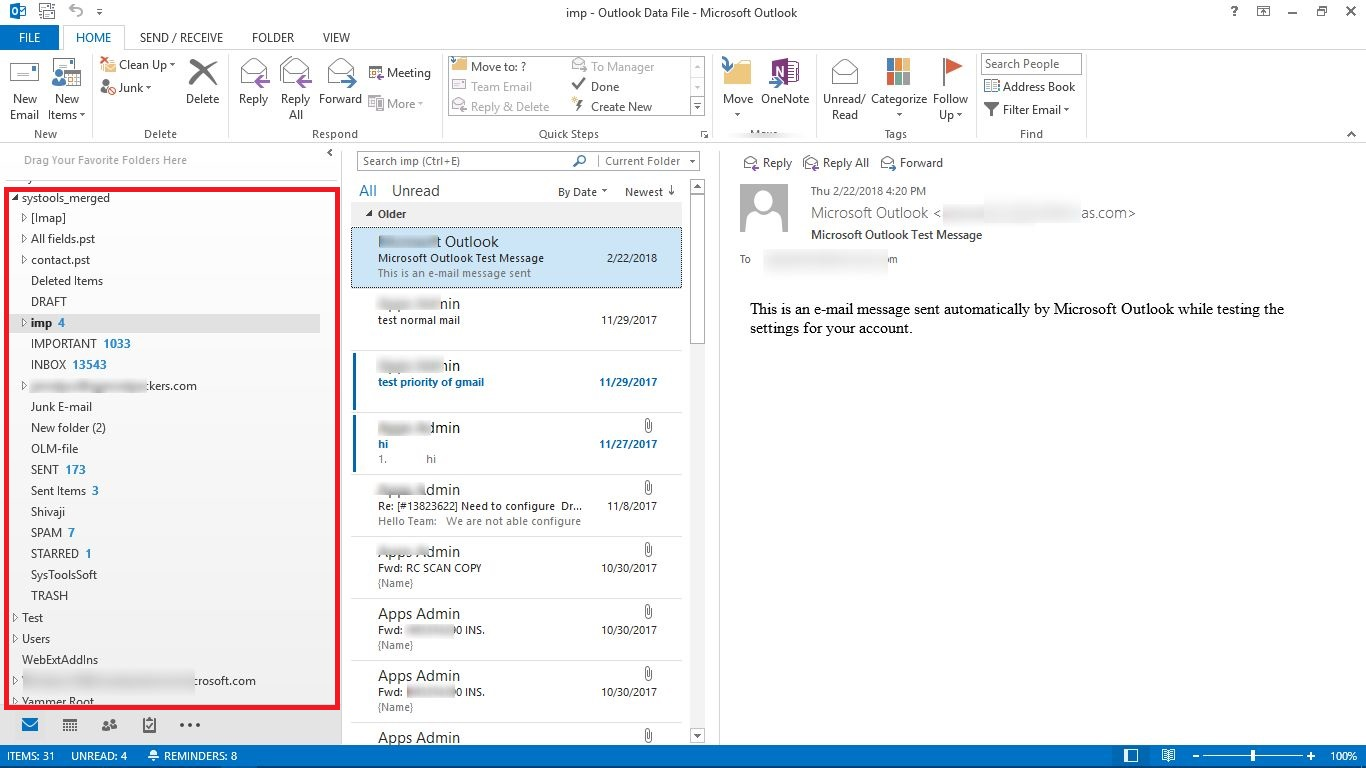
Step by Step Procedure to Merge Outlook Data Files
Step 1
Launch PST Merge software from the installed location or Go to Start Menu » All Programs » PST Merge to begin the Outlook PST merge procedure.
Step 2
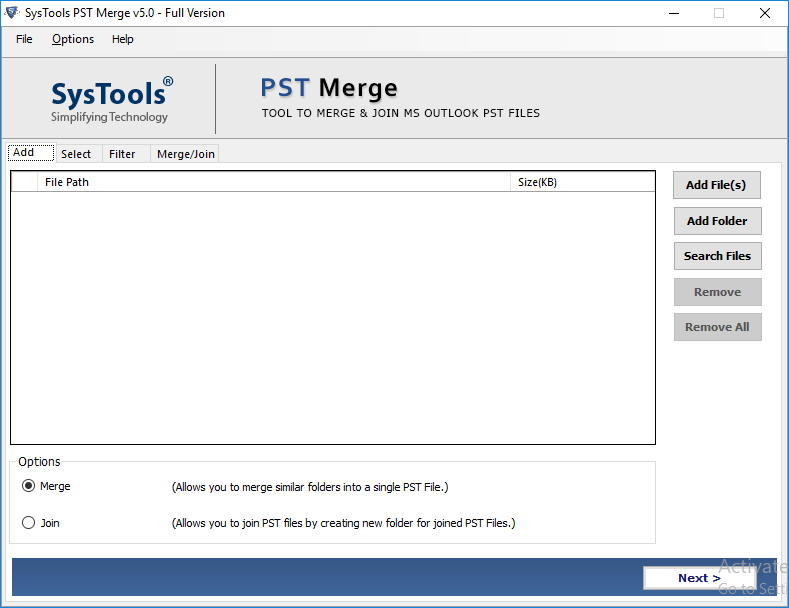
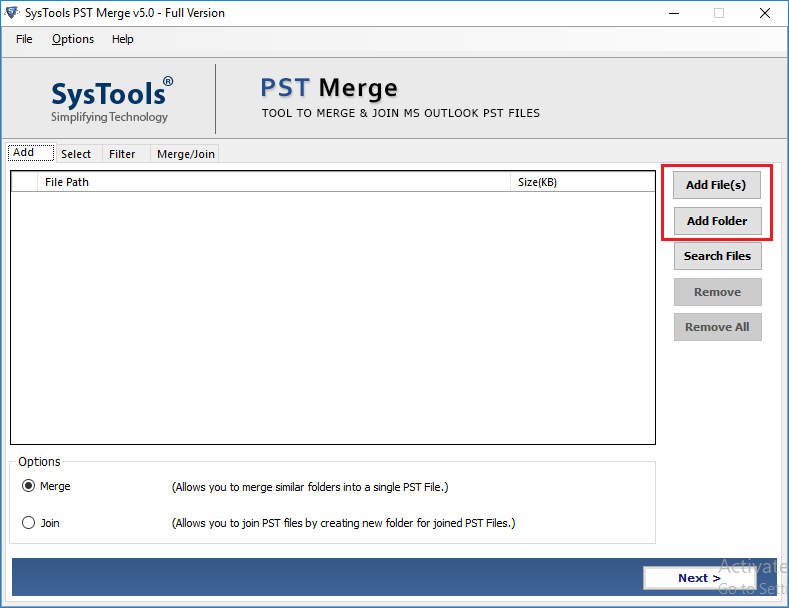
Click "Add Files" to manually add PST files one by one or "Add Folder" to add the complete folder containing the files to be merged. The software scans and display them in the adjacent pane with File Names and their source path.
Step 3
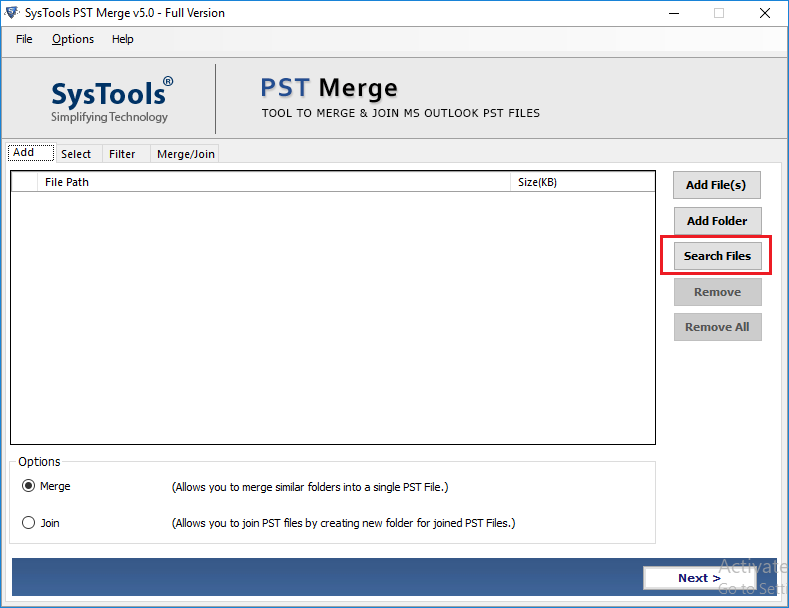
User can simple use Search Files option to search for a sepecific PST files.
Step 4
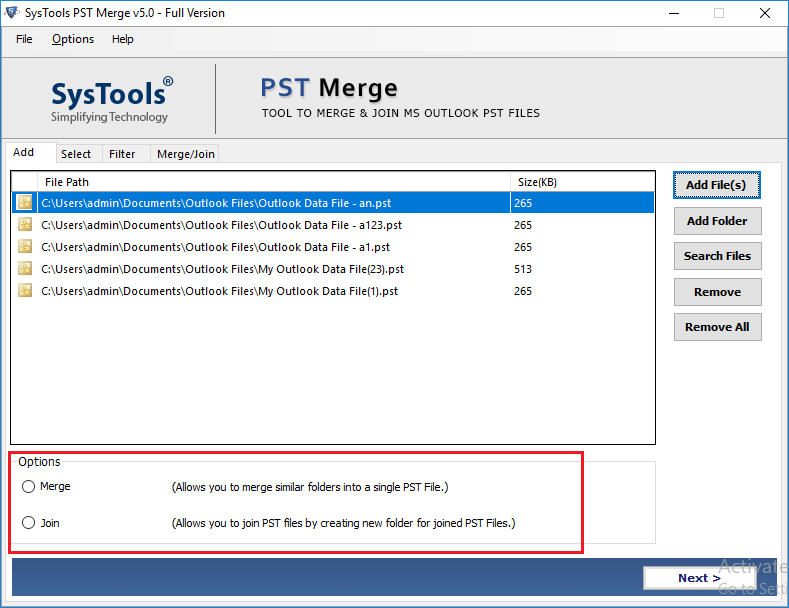
The software provides two options for merging Outlook .pst files into single one such as Join / Merge. Choose the option as per your convenience.
STEP 5
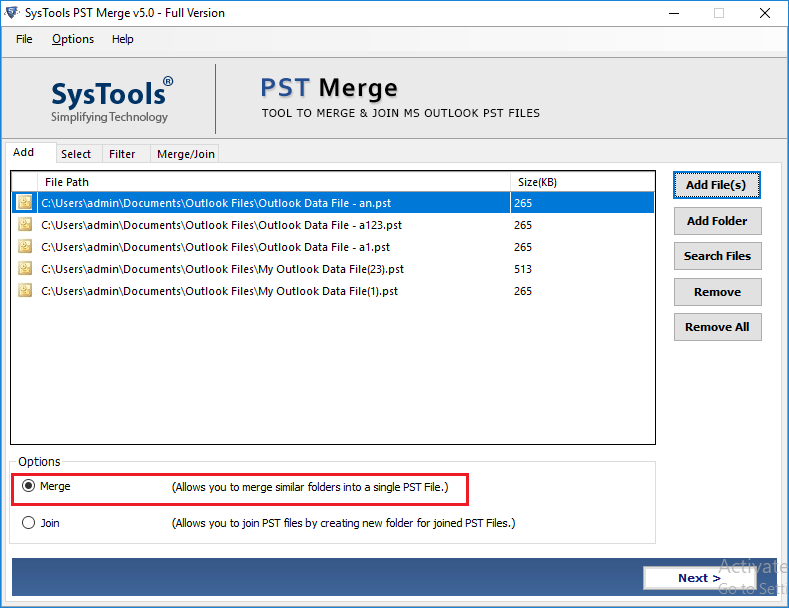
Select the radio button corresponding to the "Merge" text as follows:
STEP 6
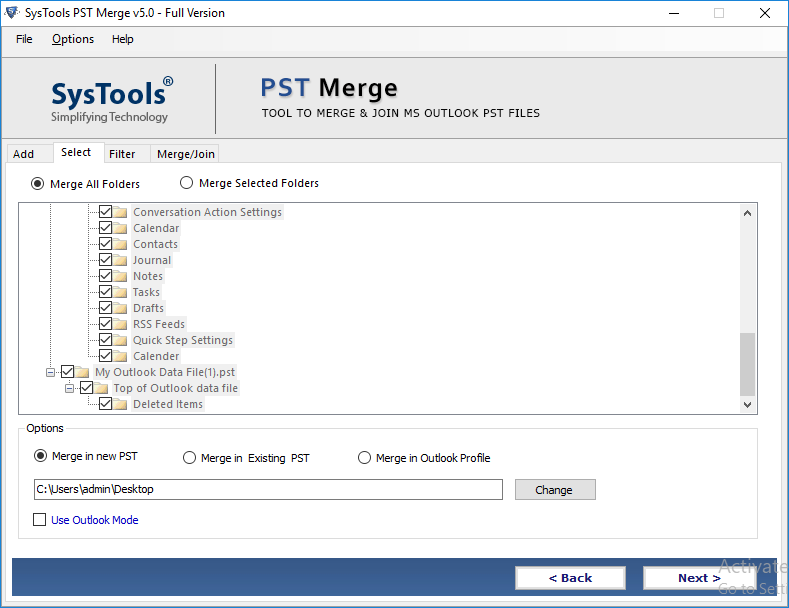
Now click on the "Merge All Folders" button to merge all Outlook folders.
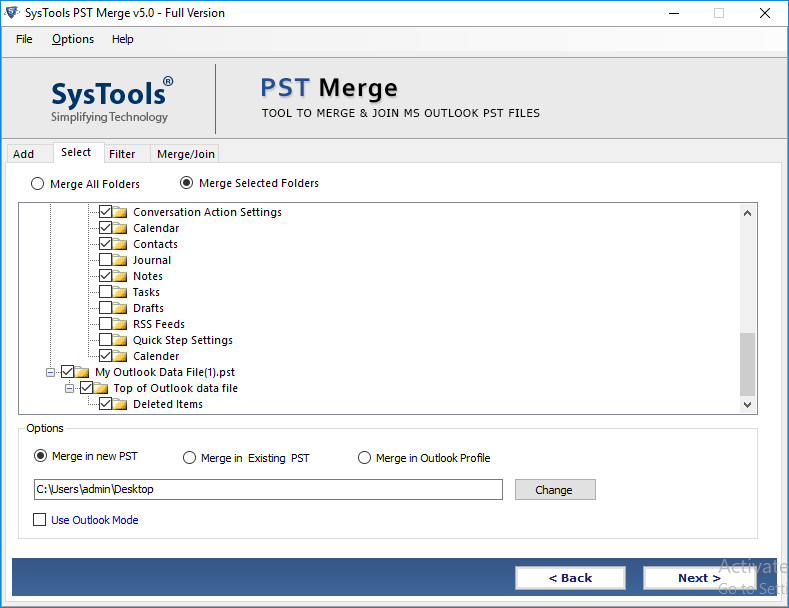
Or you can click on "Merge Selected Folders" to merge only selected folders.
STEP 7
Under Options, select "Merge in New PST" to create a new PST file on your system.
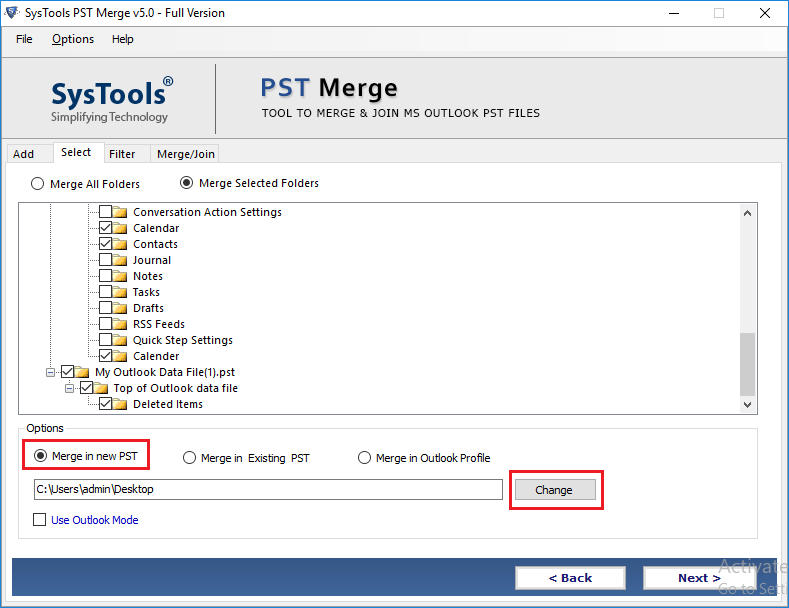
Click on "Change" button and browse for folder to save the merged PST file.
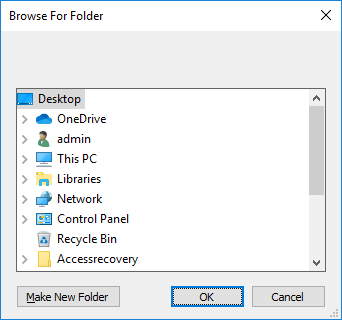
Note:This option allows you to merge multiple PST files without Outlook installation.
STEP 8
Next, You can select "Merge in Existing PST" option to combine Outlook PST files with an existing PST file.
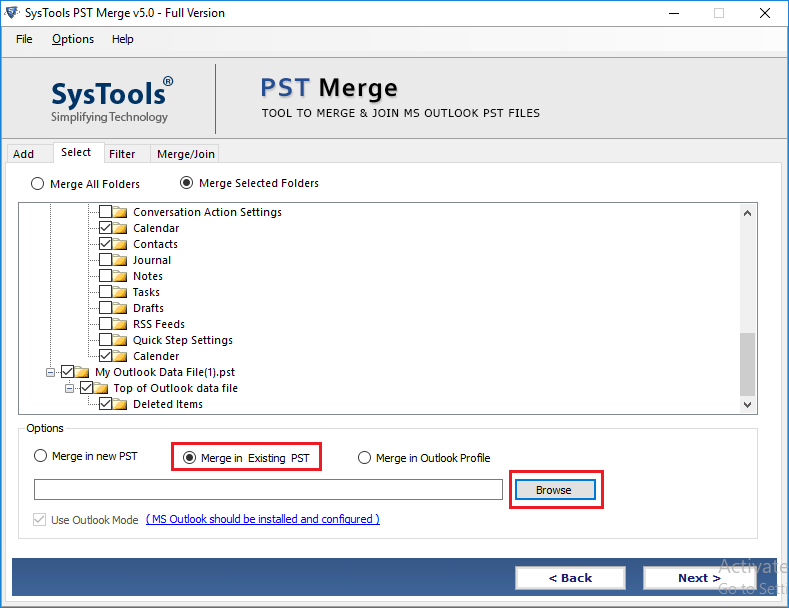
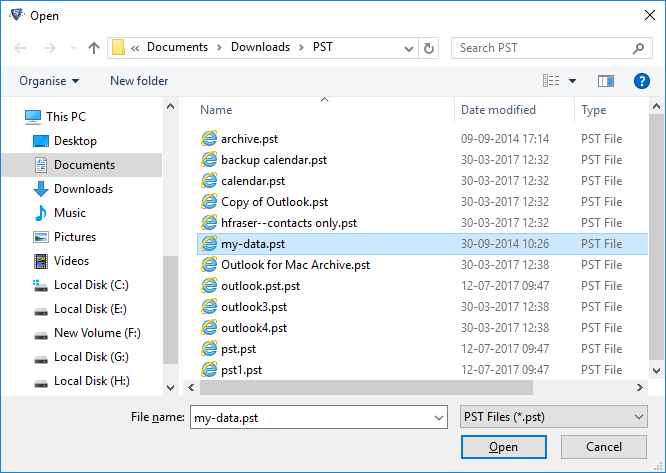
Click on "Browse" button and select the existing PST file in which you want to merge the selected PST files or folder. Then Click the Open button.
STEP 9
Choose the "Merge in Outlook Profile" option to merge directly with existing Outlook profile.
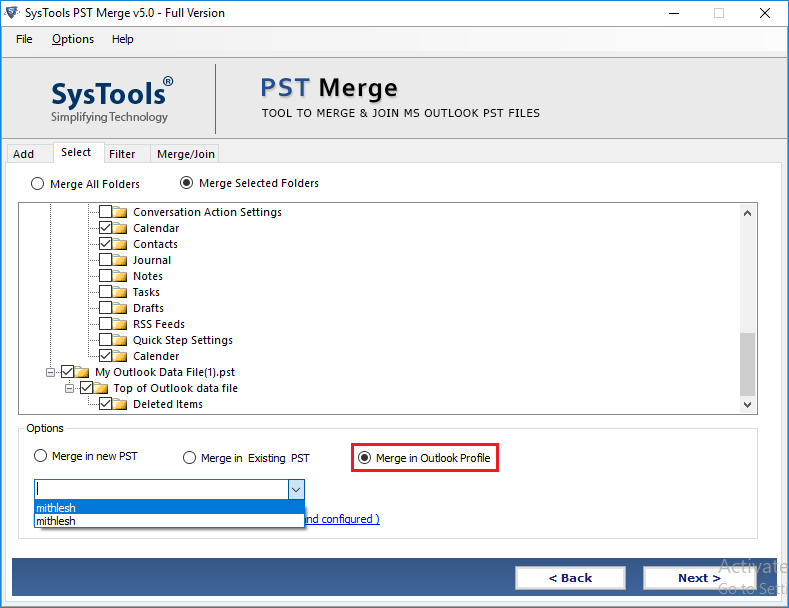
Note:If you want to merge PST files into Existing PST or Outlook Profile, then Outlook should be installed and configured properly. Make sure that the PST files should not corrupt and not in use by any application when you merge them into one.
Click on NEXT to proceed.
STEP 10
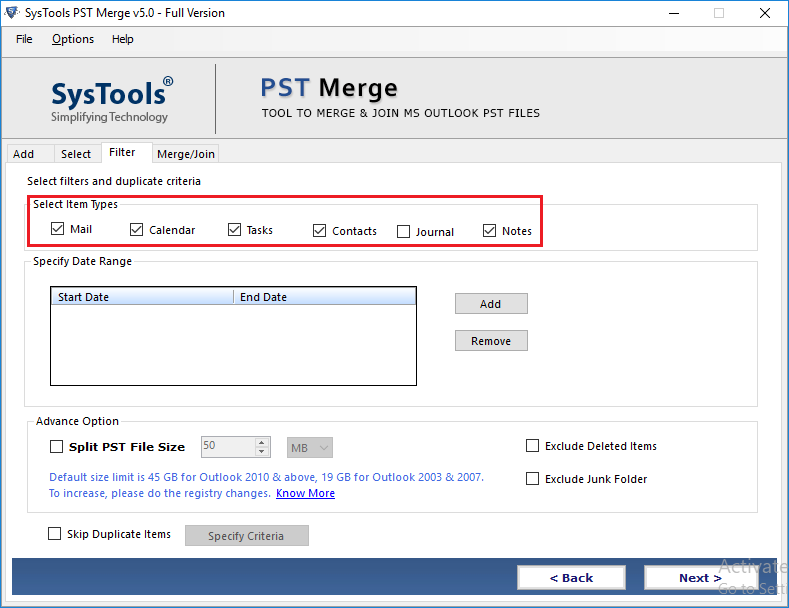
In the Filter section, Select Items Types: Mail, Calendar, Tasks, Contacts, Journal, Notes that you want to merge.
STEP 11
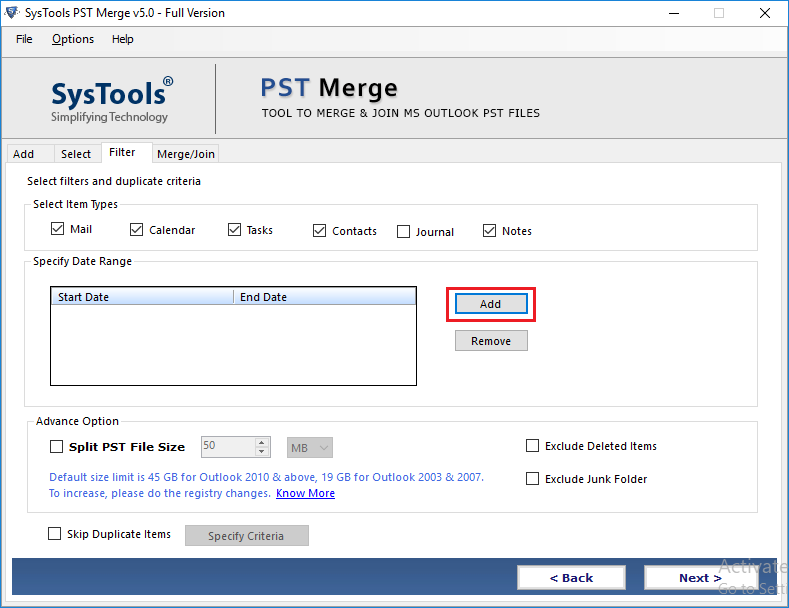
Now, you can "Sepecify Date Ranage" according to the needs. Cick on Add button and select the Date.
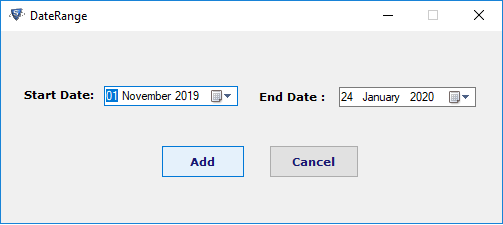
Select the "Start Date" and "End Date" to merge PST files with a specific date. Then click on the Add button.
STEP 12
In the Advance Option Section, you can check the "Split PST File Size" option to split large sized PST files in MB or GB according to your requirements.
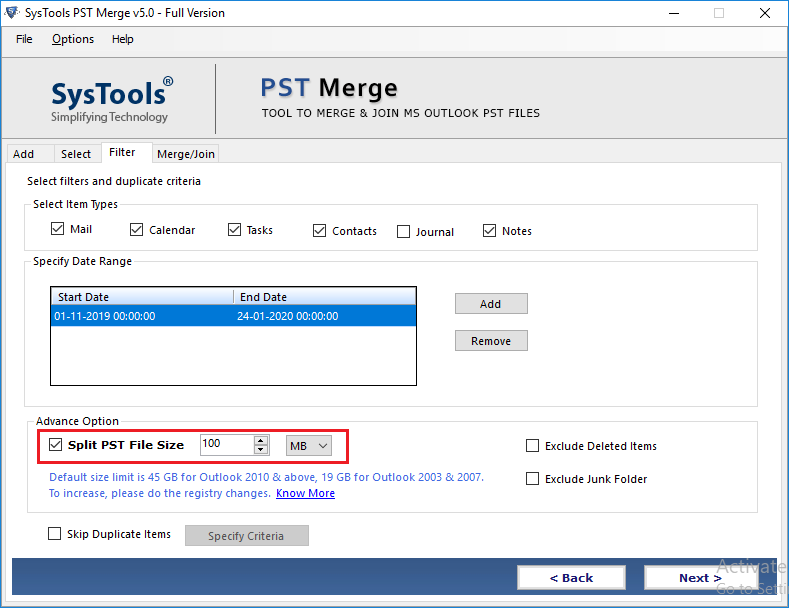
Note: For the Split PST file, It is allowed to split the PST files into a Minimum of 100 MB and Maximum size of 200 GB inorder to avoid the chances of file corruption in case of Large PST files.
STEP 13
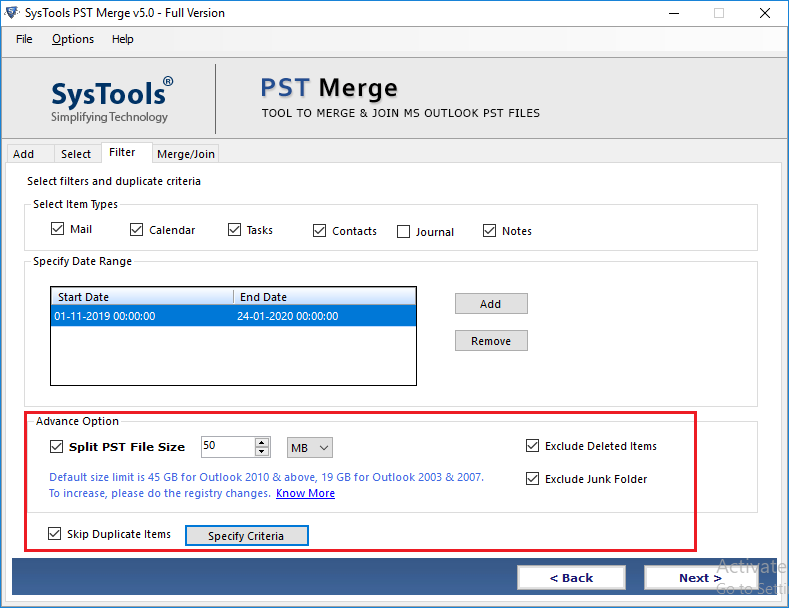
Next, check the "Exclude Deleted Items" and "Exclude Junk Folder" option as per your needs. The software also provides advance option of "Skip Duplicate Items".
STEP 14
Select the Skip Duplicate Items checkbox and then select Specify Criteria. Now select the required items from Mail, Contacts, Calendar, Notes, Task, and Journals to remove duplicates.
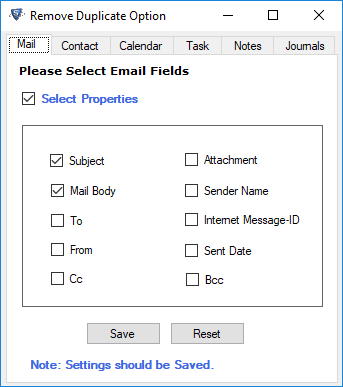
Select the Email Fields: Subject, Mail Body, To, From, Cc, Bcc, Attachment, Sender Name, Internet Message ID, Sent Date
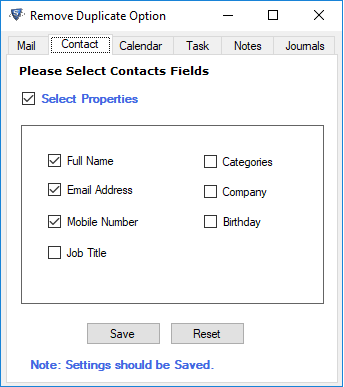
Select the Contacts Fields: Full Name, Email Address, Mobile Number, Job Title, Categories, Company, Birthday
Select the Calendar Fields: Subject, Start Date, End Date, Attachment, Categories, To, Cc, Bcc, From, Location
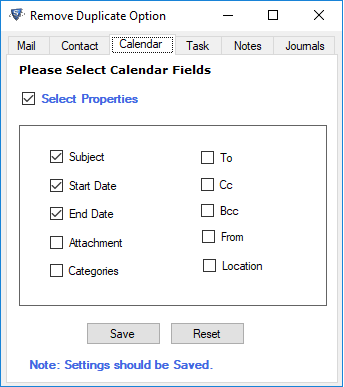
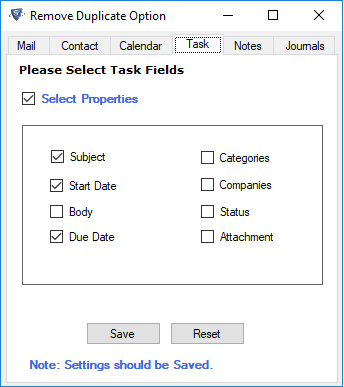
Select Task Fields: Subject, Start Date, Body, Due Date, Categories, Companies, Status, Attachment
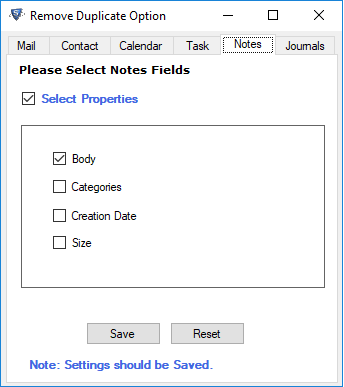
Select Notes Fields: Body, Categories, Creation Date, Size
Select Journals Fields: Subject, Start, Attachment, Body, Categories, Entry Type, Company
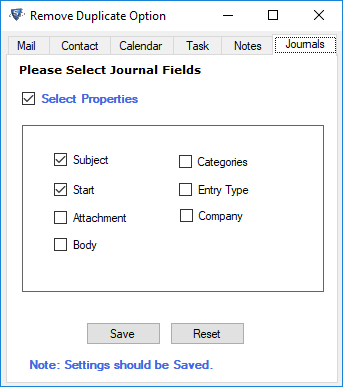
After, click on Save button to save all settings.
STEP 15
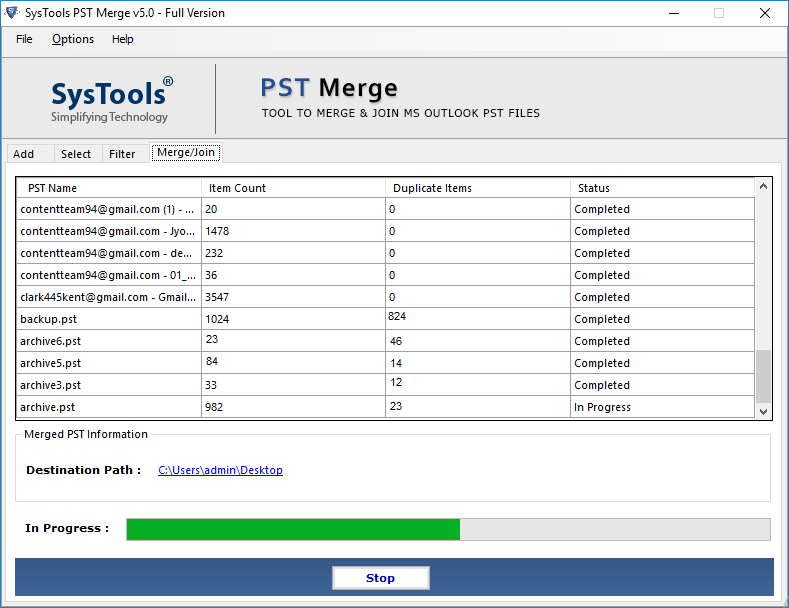
In the end, click on the Next button to start the merging Outlook .pst files into single one process. As soon as the process begins, the detailed progress of the process is visible in the Merge Pane with details such as PST File Name, Duplicate Items, Item Count, current Status, and destination path. The merge operation overall status is shown in the progress bar located at the bottom.
STEP 16
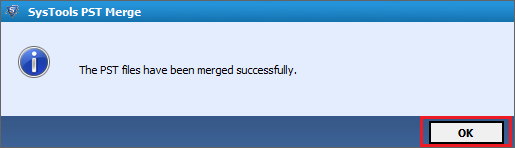
After the process is completed a prompt is shown displaying "The PST Files have been merged Successfully" message. Click OK to proceed further.
STEP 17
A report is generated in .csv file format, listing all the details of the merged elements.
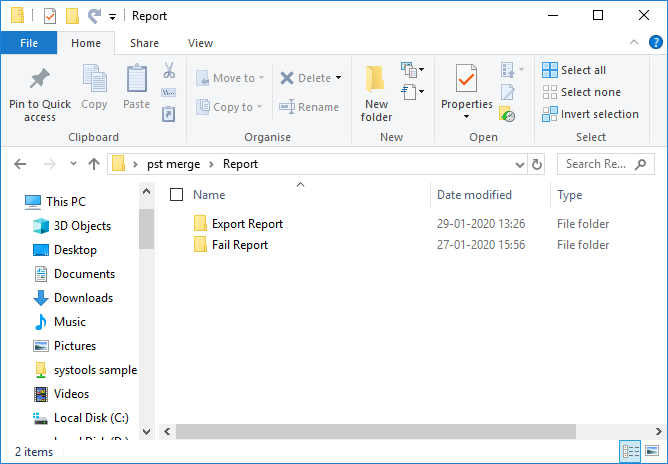
The software creates a Report folder which contain the Export Report and Fail Report. Below you can see the Export Report
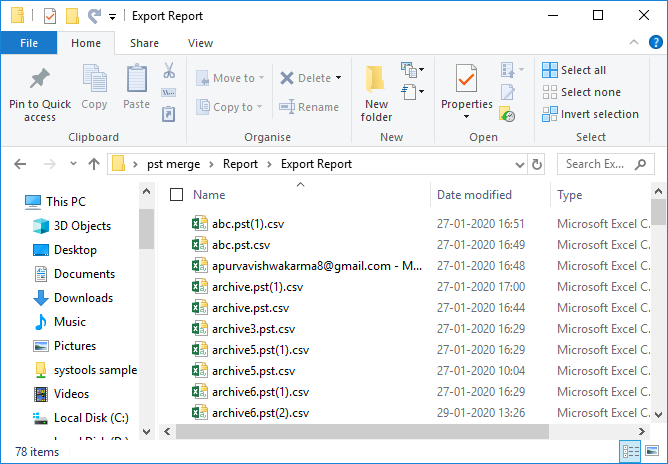
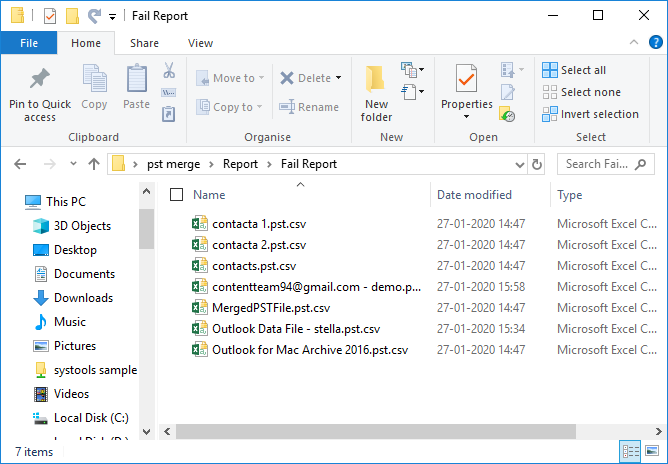
The tool also creates a Fail Report Folder which contains all the items that failed to merge
STEP 18
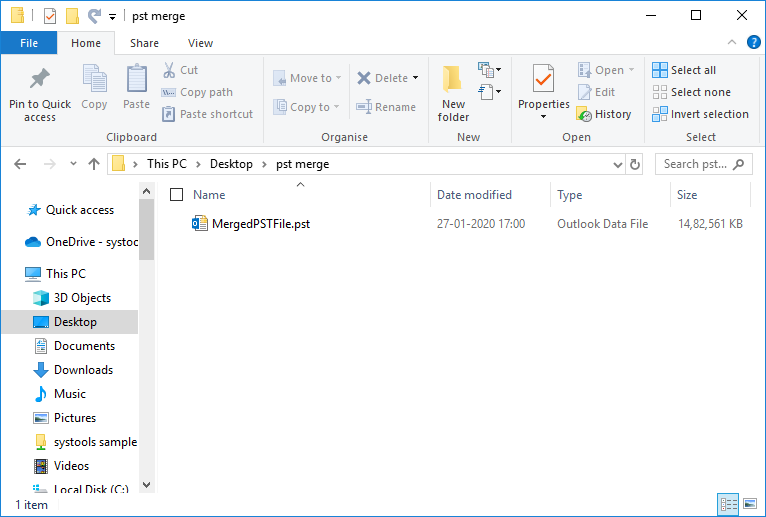
You can view the output from the selected destination as shown below:
STEP 19
Now you can view the Merged PST file data in Outlook.